Resources
Student Tutorials
How to join your course, record your responses, and see your feedback — plus fixes for the problems that come up most often.
Before your first assessment
Two minutes now saves a panicked email later.
Camera & microphone
Your browser will ask permission the first time. Allow it — RhetorixLab can't record without it.
A quiet place to record
No camera, mic, or space? Reservable rooms and equipment loans are covered in the FAQ below.
A stable connection
Wired beats Wi-Fi. Close other bandwidth-heavy apps before you start.
Joining your course
Use this when your instructor gave you an enrollment key.
If you reach RhetorixLab through Canvas, Moodle, Blackboard, or other LMS, you can skip this — you're enrolled already.
Steps
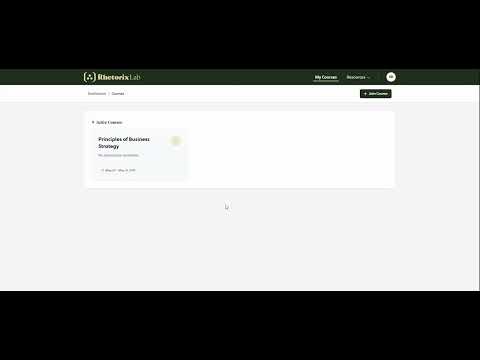
- Sign in to RhetorixLab. Your dashboard lists your active and previous courses.
- Click Join Course in the top-right corner.
- Paste the course access key your instructor gave you.
- Click Join Course. The course appears in your list.
- Open it to see and complete your assessments.
If you get an error
Contact your instructor and ask them to confirm the key — and to check that your email is already on the course roster. The key won't work until you've been added.
Completing an assessment
Use this when you're about to record for the first time and want to know exactly what happens.
Which mode am I in?
The assessment overview tells you before you start. The difference matters:
| Feature | Open mode | Testing mode |
|---|---|---|
| Reading the question | Take as long as you like | A prep timer counts down |
| Recording starts | Only when you click record | Automatically when prep hits zero |
| Recording stops | When you click stop, or when the response timer reaches zero | |
Steps
- Find the assessment on your course dashboard and click Begin.
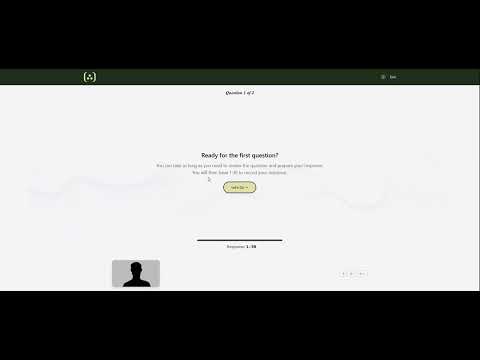
- Read the overview: how many questions, how long you get to respond, total points, and which mode it uses.
- Do the test recording. Grant camera and microphone access when your browser asks, say a few words, then click Stop.
- Play it back and check you can see and hear yourself. If not, click Record again and fix your browser's camera and mic settings.
- Click Confirm and proceed.
- For each question: read it, click Record when ready, answer, then click Stop (or let the timer run out). You can adjust the question text size if that helps.
- On the final page, review your recordings. Processing takes a few minutes.
- Later, click View Feedback on the assessment to see your score and your instructor's comments.
Before you re-record
In open mode, you can re-record your response. However, starting over re-records every question, not just the one you're unhappy with. Only restart if you're prepared to redo the whole assessment — and check with your instructor, since they control how many attempts you get.
Something's not working?
Quick fixes for the most common problems. If none of these help, email support@rhetorixlab.io or contact your instructor.
Getting in
If your instructor enrolled you manually (not via Canvas or another LMS), make sure you've entered the enrollment key — it's a short code your instructor shares. Go to your dashboard, click Join Course, and paste it.
Still not showing? Your instructor may not have added your email to the course roster yet. The enrollment key won't work until your email is on the roster. Ask your instructor to confirm they've added your exact email address.
Assessments only appear on your course dashboard between their open date and close date. If it's before the open date, you'll need to wait. If it's past the close date, the window has ended — contact your instructor if you need an extension.
If you access RhetorixLab through Canvas or another LMS, launch the assignment directly from your LMS course — it won't appear on the RhetorixLab dashboard separately.
If you see a blank screen or "refused to connect" error when launching from an LMS platform (e.g, Canvas, Blackboard, Moodle), try these steps:
- Make sure you're using a supported browser — Chrome, Firefox, or Edge. Safari can block third-party cookies that the LMS integration needs.
- Disable any ad blockers or privacy extensions (uBlock Origin, Privacy Badger, etc.) for the RhetorixLab domain.
- Try opening the assignment in a new private/incognito window.
- Clear your browser's cookies and cache, then re-launch from the LMS.
If none of that works, ask your instructor to confirm the LTI connection is set up correctly on their end.
Recording & submitting
Most laptops have a built-in camera and microphone that will work fine. If yours doesn't:
- Check if your university library or media center loans webcams or headsets.
- Many campuses have reservable recording rooms — check with your library or student services.
- An inexpensive USB webcam or phone earbuds with a built-in mic will work.
For a quiet place: library study rooms, empty classrooms, or even a parked car work well. Background noise won't affect your grade, but a quieter environment makes it easier to focus.
Your video uploads directly as you record, so a stable internet connection matters. If your upload stalls or fails:
- Use a wired connection if possible — it's more reliable than Wi-Fi.
- Close other apps that use bandwidth (streaming video, large downloads, video calls).
- Move closer to your Wi-Fi router, or switch to a less congested network (campus Wi-Fi over home sometimes helps).
- If you're on mobile data, make sure you have strong signal (3+ bars).
If an upload fails, your recording is not lost — refresh the page and try submitting again. If problems persist, contact your instructor about an extension and try from a different network.
Don't panic. Any questions you already finished recording (where you clicked Stop or the timer ran out) are saved — your video streams to the server as you speak. You can view your recorded videos by selecting the Feedback link for an assessment.
Go back to your course dashboard, click the assessment, and it will pick up where you left off at the next unanswered question. You don't need to re-record anything you already submitted.
If you were mid-recording when the browser closed (e.g. during a response), that particular answer will be incomplete and likely marked as failed. You'll see it listed as unanswered and can record it again.
Important: If you've used all your allowed attempts and the assessment is closed, contact your instructor — they can clear your attempt so you can try again.
Two things need to happen before you can see your score and feedback:
- Your instructor needs to grade your responses using the rubric.
- Your instructor needs to publish grades for the assessment — until they do, scores won't be visible to students.
If "View Feedback" is greyed out or shows no score, it likely means grading isn't finished or grades haven't been published yet. Check with your instructor on their grading timeline.
If you launched through and LMS platform (e.g., Canvas, Blackboard, Moodle, etc.), your grade will also appear in SpeedGrader / Grades once your instructor publishes.
Camera & permissions
This means your browser blocked RhetorixLab from using your camera or microphone. To fix it:
- Look for a camera icon in your browser's address bar (usually on the right). Click it and select Allow.
- If you previously clicked "Block", you need to reset the permission. In Chrome: click the lock/tune icon → Site settings → set Camera and Microphone to Allow.
- Reload the page after changing permissions.
On Mac: also check System Settings → Privacy & Security → Camera / Microphone, and make sure your browser is listed and enabled.
RhetorixLab tries multiple approaches to access your camera automatically. If you see a black preview or get the "Media stream is not available" alert when clicking Start Recording, the camera could not be accessed at all. Common causes:
- Another app is using the camera — quit Zoom, Microsoft Teams, Google Meet, FaceTime, Discord, or any video app. Even if you're not on a call, these can hold the camera in the background.
- Another browser tab is using the camera — close any other tab that might have camera access (another RhetorixLab tab, a recording site, etc.).
- On Windows, check if the camera indicator light is on — that means another process has it.
After closing the other app, reload the page. RhetorixLab will automatically retry with different camera settings to get the best possible connection.
After your test recording, it takes a few seconds to process. If you see "We weren't able to process your recording":
- The recording may have been too short. Make sure you speak for at least 5 seconds during the test.
- It could be a temporary server issue. Click Record Again and try once more.
- If it keeps failing, try a different browser (Chrome and Firefox work best).
You must see and hear yourself in the playback before you can continue to the actual assessment questions.
During the assessment
This appears if your browser can't connect to the recording server. The most common causes:
- VPN or firewall — campus or corporate VPNs sometimes block WebSocket connections. Try disconnecting your VPN, or switch to a personal network.
- Browser extensions — ad blockers, privacy tools (uBlock Origin, Privacy Badger), or security extensions can block the connection. Try disabling them for RhetorixLab.
- Temporary server issue — wait 30 seconds and click Reload Page. If it persists after a few tries, the server may be undergoing maintenance.
If you see "Your session may have expired" specifically, try logging out and logging back in.
When the response timer reaches zero, your recording stops and is submitted automatically — everything you said up to that point is saved. This is by design; it mirrors a timed oral exam.
You cannot extend the timer or re-record individual questions. If you feel the time limit is too short, talk to your instructor — they set the response duration and may be able to adjust it, or they can grant an accommodation for extra time.
Tip: Watch the timer as it counts down. If you have a lot to say, prioritize your key points early so the most important content is captured even if time runs out.
Some courses include 3 free assessments on the Foundations plan. After completing 3, you'll be prompted to upgrade before starting additional assessments.
What to do:
- Check with your instructor — they may have an institutional access code that gives you full access at no cost, or they may be sponsoring the course.
- If your instructor confirms you need to pay, the checkout uses Stripe for secure payment. You'll only be charged once per course.
If you were prompted by mistake, let your instructor know — they can check the course billing settings.
Your video is streamed to the server in small chunks as you speak. If you close the tab or navigate away mid-recording, the server saves whatever it received up to that moment — but the recording may be incomplete and is typically marked as failed.
Any questions you fully recorded before that one (where you clicked Stop or the timer ran out) are saved normally. When you come back:
- Go to your course dashboard and click the Feedback link to view what you already recorded
- If you still need to record additional question, select the Begin button for that assessment again.
- It will resume from the question you didn't finish.
- You'll go through the camera test again, then record the remaining questions.
If the assessment won't let you back in, contact your instructor — they can clear your attempt so you can retake it.
Still need help?
Reach out — and let your instructor know if a deadline is at risk.